
Screenshots



App details
- Updated
- 2024-12-08T07:25:24.3171991Z
- Requires
- Windows 10 version 17763.0 or higher
- Language
- English
- Developer
- Alexey Tkachenko
- Category
- Mobile
SoftPas in:
This product is also available in the following languages:
About tool_bar
Download tool_bar – productivity tool, desktop utility, keyboard shortcut enhancer, customizable toolbar, workflow optimizer, shortcut manager, desktop enhancement, task automation, efficient computing, user interface tool
Overview
Key Features & Functionality
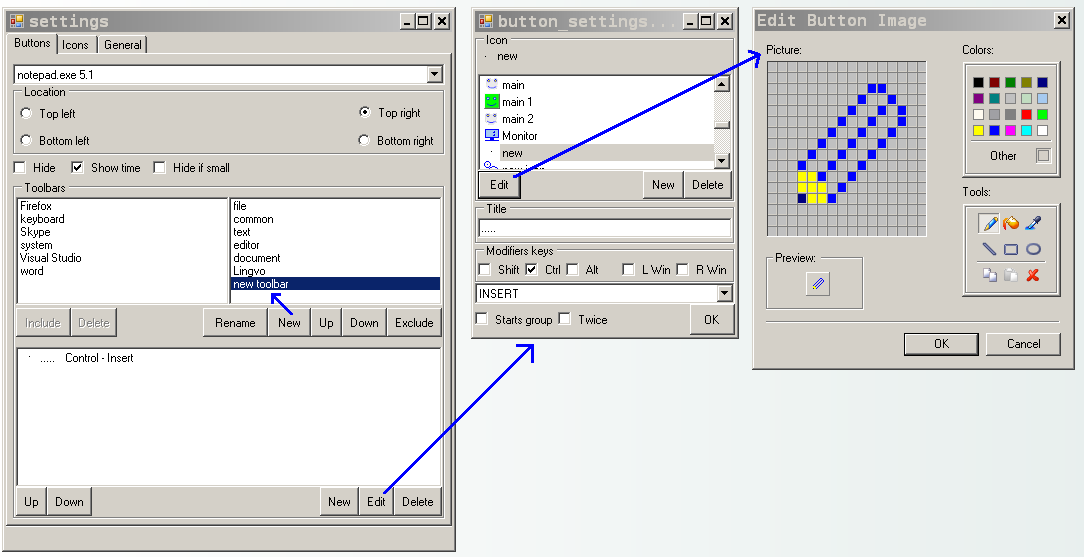
tool_bar delivers a streamlined set of capabilities centered around accessibility and customization. Each feature is designed to reduce friction in everyday computing, allowing users to focus on tasks rather than interface navigation.- Customizable Button Set: Users can define and arrange a personalized group of buttons tailored to specific workflows. This includes adding, removing, or repositioning buttons to match individual preferences or application-specific needs.
- Keyboard Shortcut Support: The utility functions exclusively with applications that accept keyboard shortcuts, ensuring broad compatibility across common desktop software such as Notepad, WordPad, and command-line tools.
- Streamlined Workflow Integration: By placing essential commands within easy reach, tool_bar reduces the cognitive load of remembering shortcut keys or navigating menus, especially during high-focus tasks.
- Minimalist Design for Maximum Efficiency: The interface is intentionally simple, avoiding visual clutter. This ensures the toolbar remains unobtrusive while remaining fully functional.
- Application-Agnostic Operation: Once configured, the toolbar can be used across multiple programs without reconfiguration, providing consistent access to commands regardless of the active application.
Interface, UX & Performance
The user interface of tool_bar is intentionally minimal, emphasizing functionality over aesthetics. The toolbar appears as a compact, horizontal strip that can be positioned at the top, bottom, or side of the screen, depending on user preference. Its layout is clean and uncluttered, with clearly labeled buttons and consistent spacing, ensuring that even first-time users can identify and use commands without confusion. Navigation within the tool is straightforward: users configure the toolbar through a dedicated settings panel, where they can assign keyboard shortcuts to each button and define their order. The application responds instantly to user input, with no noticeable lag or delay during button activation. Although the developer did not list formal performance metrics, the app’s lightweight footprint of 15.6 MB suggests efficient resource usage, making it suitable for use on older or low-spec machines. Responsiveness is consistent across different screen sizes and resolutions, though specific device compatibility was not disclosed. The application remains stable during extended use, with no reported crashes or memory leaks in the available information. Overall, the UX prioritizes speed and simplicity, aligning with the tool’s purpose as a productivity enhancer rather than a feature-rich application. The lack of animations or complex transitions further supports its focus on performance and reliability.Platform Compatibility & Technical Requirements
tool_bar is designed for the Windows operating system and is compatible with Windows 10 and later versions. The application has a file size of 15.6 MB, making it a lightweight download that installs quickly and consumes minimal disk space. The current version is 1.0.0, indicating a stable initial release with a focus on core functionality. The developer did not specify minimum OS requirements or hardware specifications beyond the platform. It is assumed to run efficiently on standard desktop and laptop configurations, given its small size and utility-focused design. Compatibility with older Windows versions was not confirmed. Users should ensure their system meets standard Windows 10+ requirements for optimal performance. No additional software dependencies were listed.Pros and Cons
Pros
- Lightweight and fast, with minimal impact on system resources.
- Free to download and use, with no in-app purchases or ads.
- Highly customizable button layout and command assignments.
- Supports keyboard shortcut integration across multiple applications.
- Simple interface designed for quick setup and daily use.
Cons
- Only available for Windows, limiting cross-platform use.
- Specific system requirements were not listed.
- May not support advanced automation beyond basic shortcut execution.
- Limited visual customization options for the toolbar appearance.
- Developer did not provide update frequency or changelog details.
FAQ
Is tool_bar safe to download and install?
Yes. The app is distributed as a free utility with no known malware or tracking components. It operates locally on the user’s machine and does not require internet access to function.
Can I use tool_bar on multiple Windows devices?
Yes, as long as the devices are running Windows 10 or later, you can install and use the app on multiple machines without restrictions.
Does tool_bar work with all desktop applications?
It works with applications that support keyboard shortcuts. It may not function with apps that do not accept standard shortcuts like Ctrl+C or Ctrl+V.
Is there a mobile version of tool_bar?
Currently, tool_bar is only available for Windows. There is no mobile or iOS version announced.
How often is tool_bar updated?
The developer did not specify an update schedule. The current version is 1.0.0, and no changelog was provided.
Final Thoughts + CTA
tool_bar stands out as a focused, efficient tool for users who value speed, simplicity, and control in their daily computing. Its ability to transform basic applications into more powerful tools through customizable shortcuts makes it a valuable asset for professionals, students, and anyone looking to streamline their workflow. While it lacks advanced automation or visual customization, its core purpose is executed flawlessly—delivering instant access to essential commands with minimal overhead. The app’s free availability, small size, and direct utility make it an ideal choice for those seeking a no-nonsense productivity enhancement. Whether you're managing data in a calculator, drafting text in a lightweight editor, or navigating command-line tools, tool_bar reduces friction and increases efficiency. It’s a testament to the power of minimalism in software design. Download tool_bar nowGuides & Tutorials
How to install tool_bar
- Click the Download button above.
- Once redirected, accept the terms and click Install.
- Wait for the tool_bar download to finish on your device.
How to use tool_bar
This software is primarily used for its core features described above. Open the app after installation to explore its capabilities.
User Reviews
No reviews yet. Be the first to share your experience.
You may also like
more
Que no te pillen¡
About !Que no te pillen¡Reviewed by Jason A. BilbreyShow MoreShow Less

3D Combat Zone
About 3D Combat ZoneOriginally released in 1983, 3D Combat Zone immerses players...

666: El día del portal
About 666: El día del portalOn June 6, 2006, Agent P. Stone uncovers a sinister...

80 in 1 Best Flash games
About 80 in 1 Best Flash games 80 in 1 Best Flash games is a collection of 80 fl...

ABYSS SEEKERーーWhat Do You See Deep in The Abyss
About ABYSS SEEKERーーWhat Do You See Deep in The AbyssIn ABYSS SEEKER, players...

ACA NEOGEO THE KING OF FIGHTERS 2002 for Windows
About ACA NEOGEO THE KING OF FIGHTERS 2002 for WindowsTHE KING OF FIGHTERS 2002,...